
Create / Edit / Delete Project
Learn how to create, edit, and delete projects in NeoSQL.
Create Project
All work in NeoSQL is managed per project. Create a new project to start working with ERD, connections, and schemas.
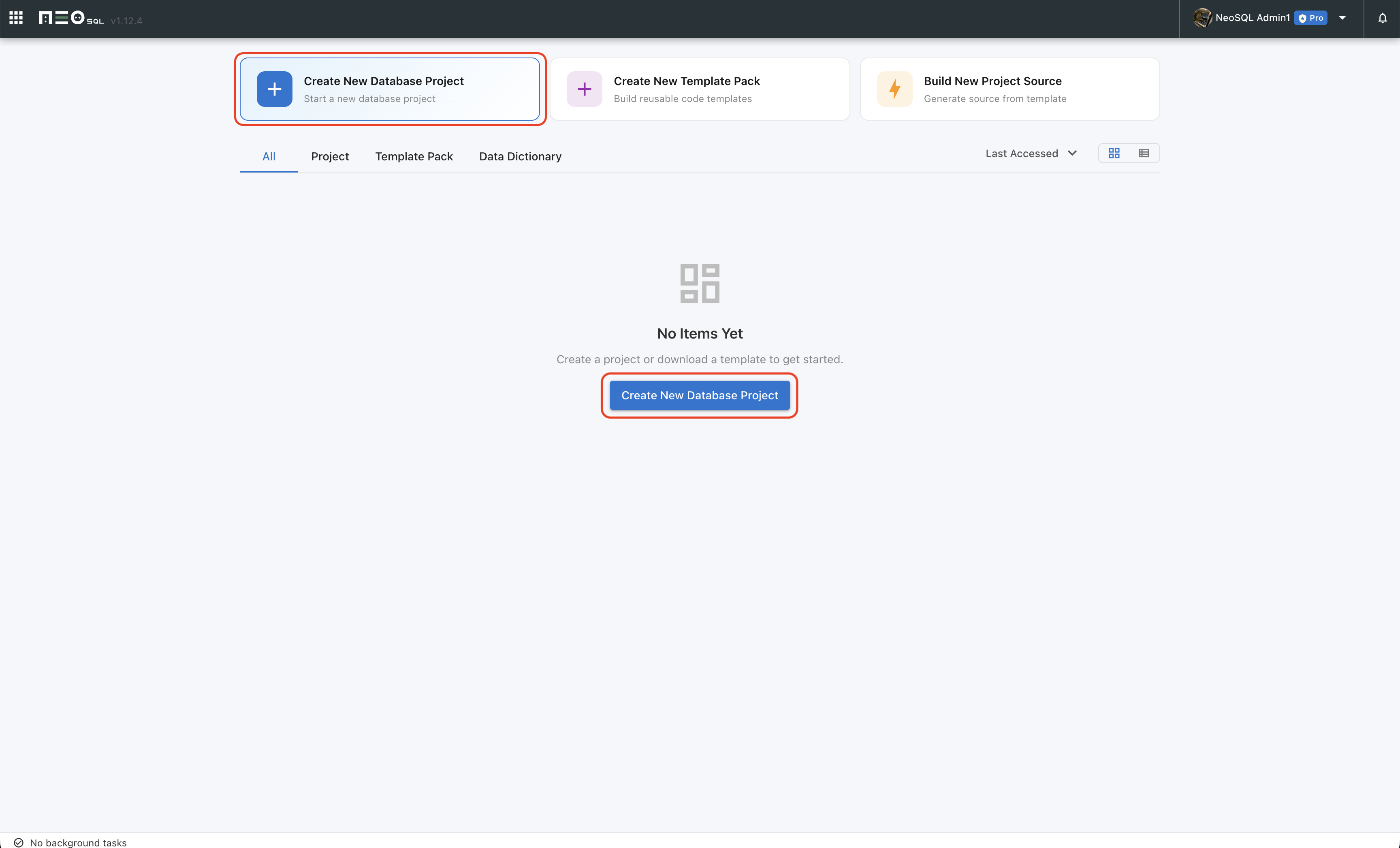
Click "Create New Database Project" on the dashboard
Sign in, then click the "Create New Database Project" button on the dashboard to open the project creation dialog.
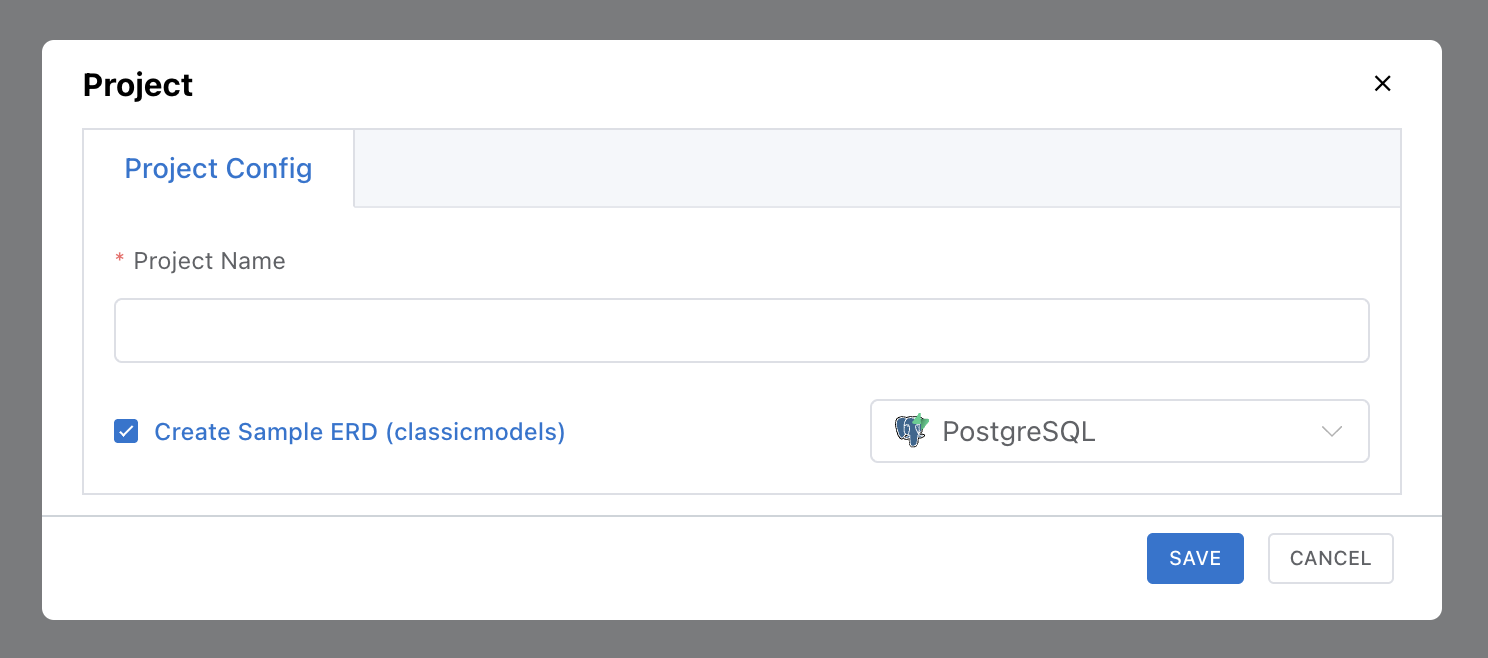
Enter the project info
Enter the project name and pick the database you will work with (MariaDB, MySQL, PostgreSQL, Oracle, etc.). Project settings can be changed later at any time.
Sample ERD option
Check "Create Sample ERD" to auto-generate sample tables grouped into 'Organization', 'Sales & Orders', and 'Products & Inventory'. Recommended for first-time users.
Save and enter the workspace
Click the "SAVE" button — the project is created and you enter the workspace.
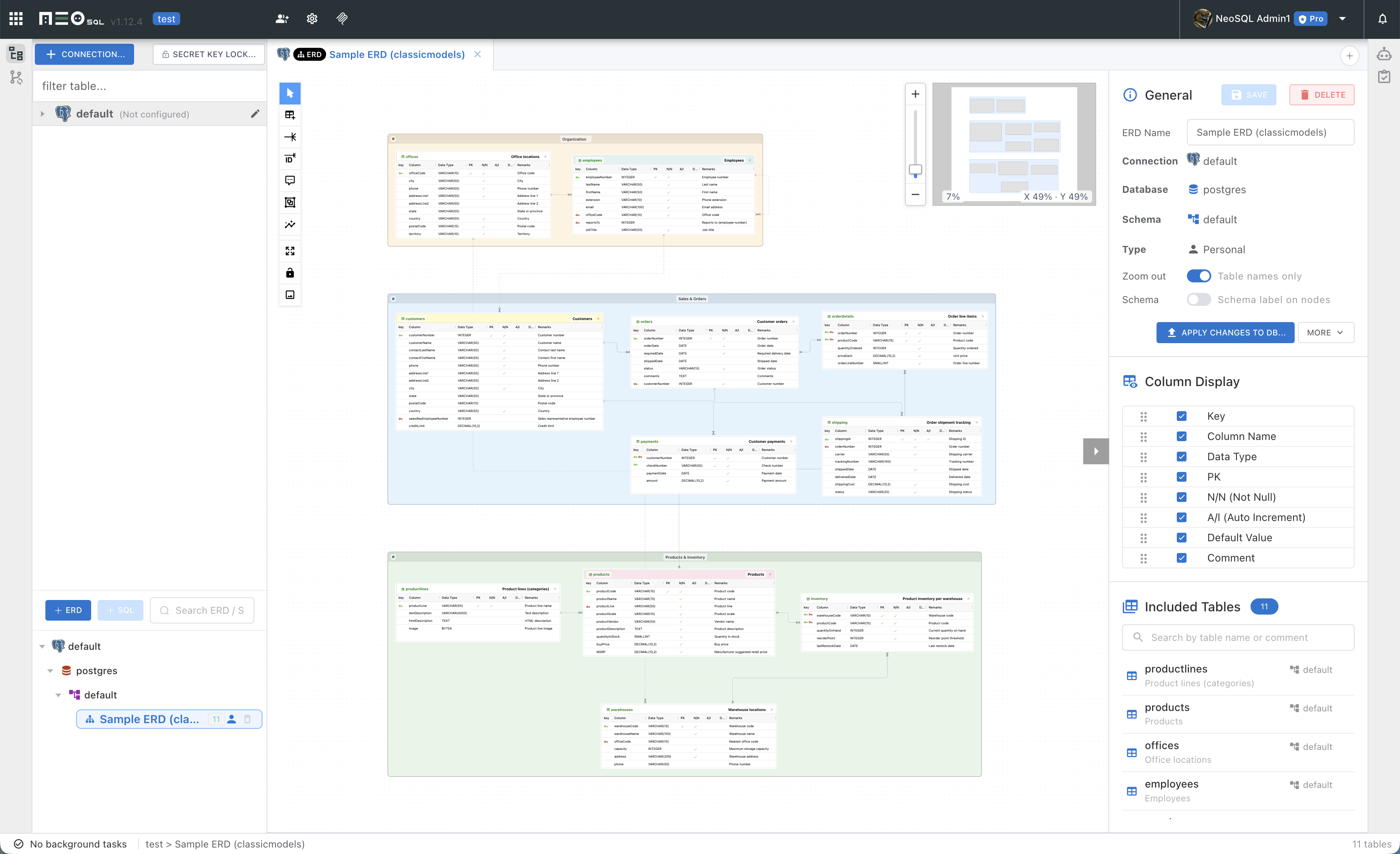
Set up connection info (optional)
Right after entering the project, a dialog appears: "You can work on the ERD without connection info, and you can configure it later. Do you want to set it up now?" Click OK to open the database connection settings where you can enter the host, port, credentials, and so on. Click Cancel to go straight to the ERD workspace.
You don't have to set this up now. You can add a connection any time later from the "+ connection" button at the top of the project sidebar — see the Create Connection guide for detailed setup steps.
Edit Project
Change the project's name, settings, permissions, and more. Either of the two methods below opens the same Project Configuration modal.
Open Settings from Dashboard
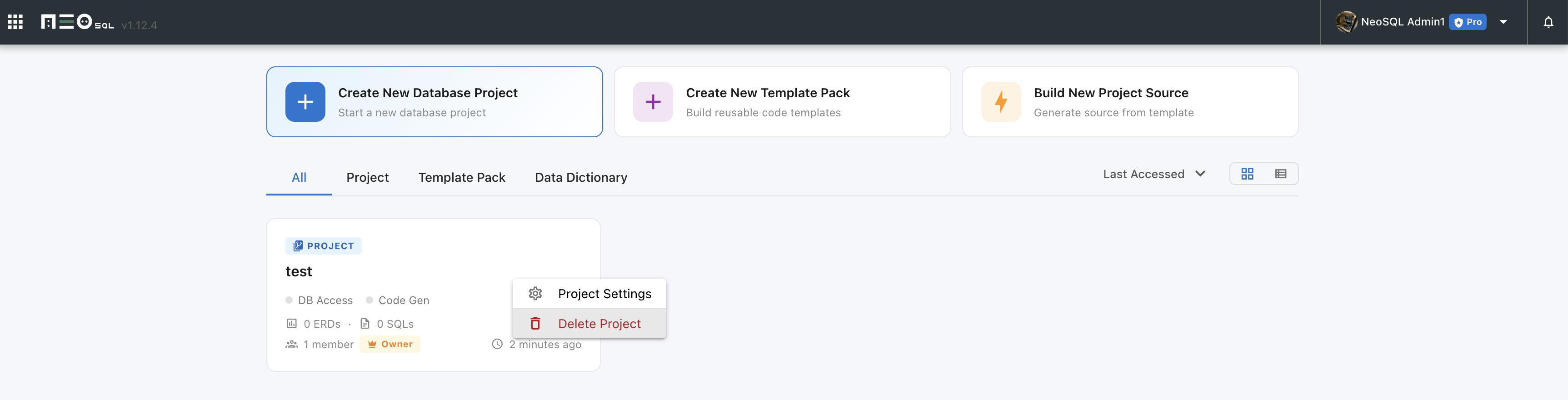
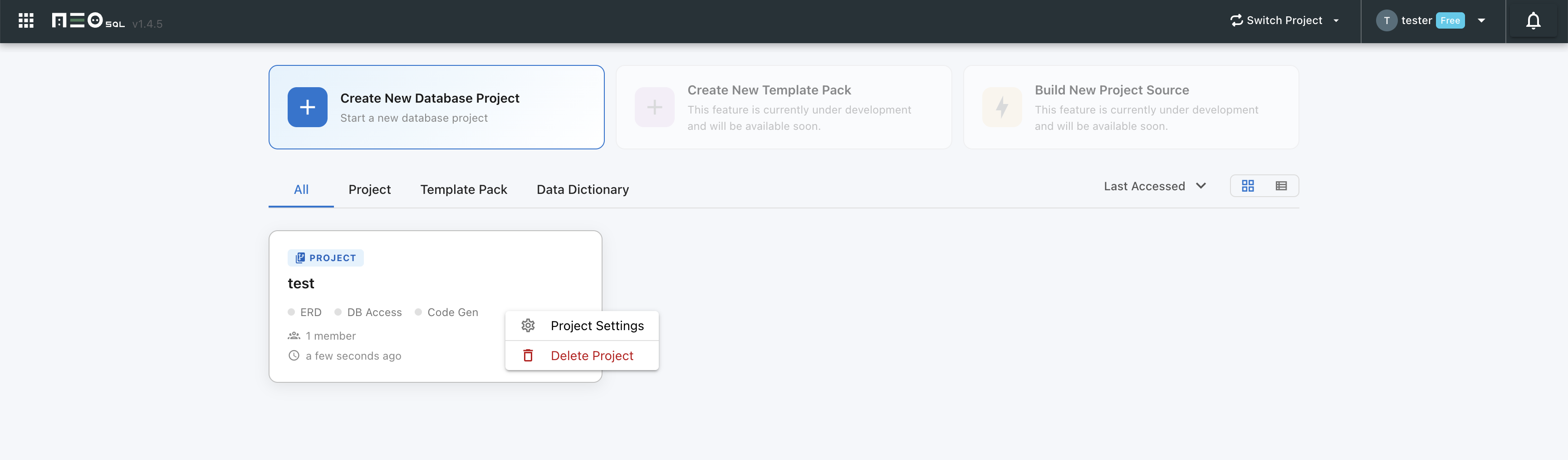
Right-click the project card on the dashboard and select "Project Settings" — the Project Configuration modal opens.
Open Settings from inside the Project
Click the settings icon at the top of the left sidebar inside the project to open the same Project Configuration modal.
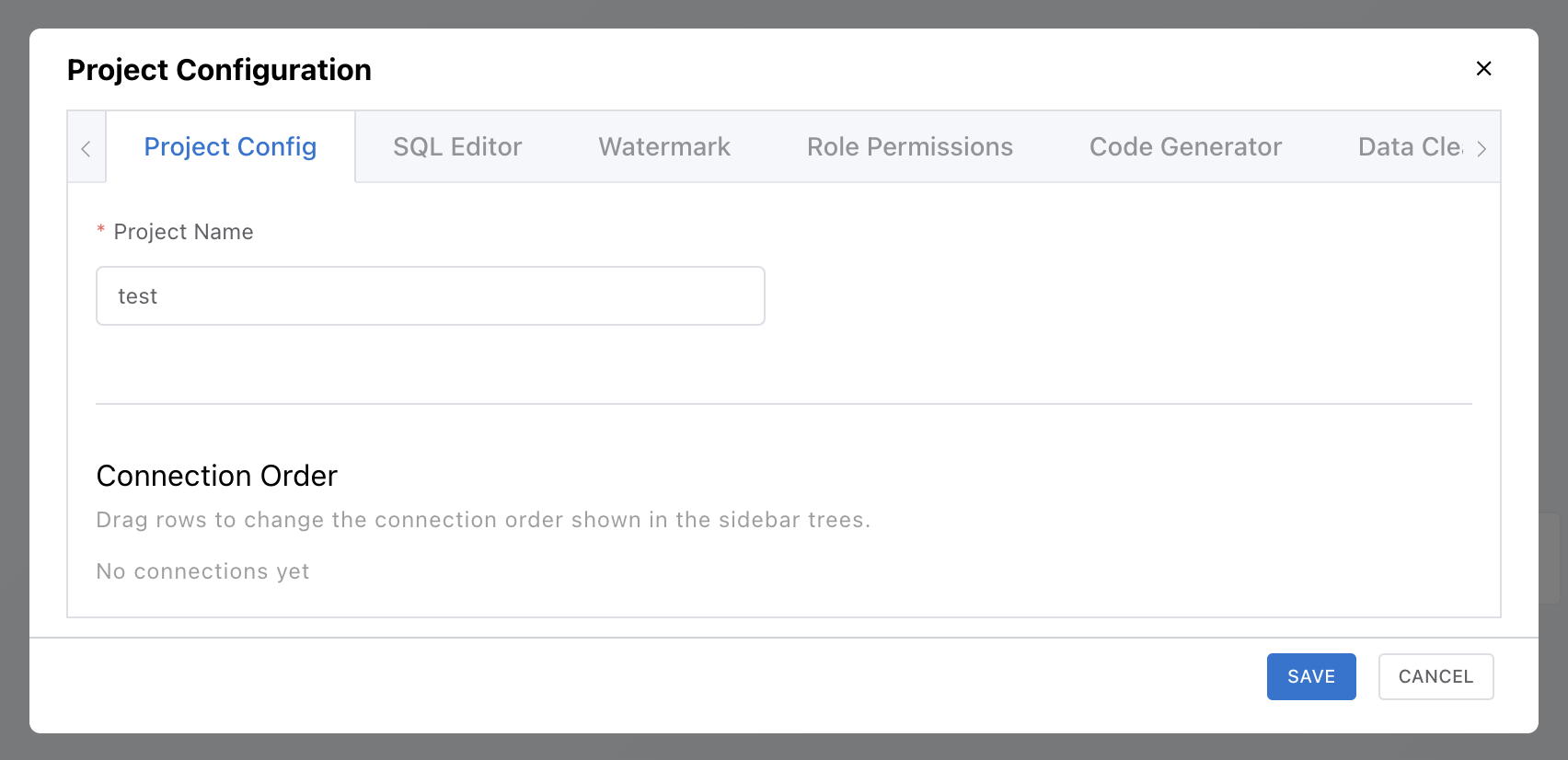
Project Configuration modal tabs
The Project Configuration modal exposes the following tabs depending on the project type (local/account) and your permission level.
- Project Config — Edit basic info such as the project name. (Shown to users with manage permission.)
- Code Generator — Enable code generation and configure the install Location, template packs, and global variables. (Shown to users with manage permission.)
- Audit Table — Configure the audit table / interface used for code generation, along with the create/update column names. (Shown only when the code generator is enabled.)
- SQL Editor — Set the timezone, date/time format, indentation style (spaces/tabs), and tab size used by the SQL editor.
- Watermark — Enable or disable a watermark on project screens and set the watermark text. (Shown to manage-permission users in online mode.)
- Role Permissions — Configure what Manager / DBA / Member roles can do in the project (sharing, connection management, DDL approval, etc.). (Shown to manage-permission users in online mode.)
See Project Settings & Preferences guide for a detailed walkthrough of each tab's fields and behavior.
After editing the desired fields, click "SAVE" to apply the changes.
Note:The Code Generator and Audit Table tabs configure table-based source code generation. See the Generating Code guide for how to use them.
Delete Project
Delete projects that are no longer in use.
Delete from Dashboard
Right-click the project card on the dashboard and select "Delete Project".
Click "OK" in the confirmation dialog.
Delete from Database Project Management
Open the management screen from the left sidebar menu: "Project" → "Database Project Management". The screen lists every registered project; click the delete icon on the right of any row to remove it individually.
To delete multiple projects at once, tick the checkboxes on the left and click the "Delete Selected" button in the top right.
Click "OK" in the confirmation dialog.
Caution: Deleting a project removes all ERDs, connections, and schema information associated with it. This action cannot be undone.