
Schema Configuration / Renamer
Limit which schemas are exposed and use Renamer to normalize how table and column names appear in NeoSQL.
Schema
Select and manage database schemas for the connection. Configure in the Schema tab of the connection settings.
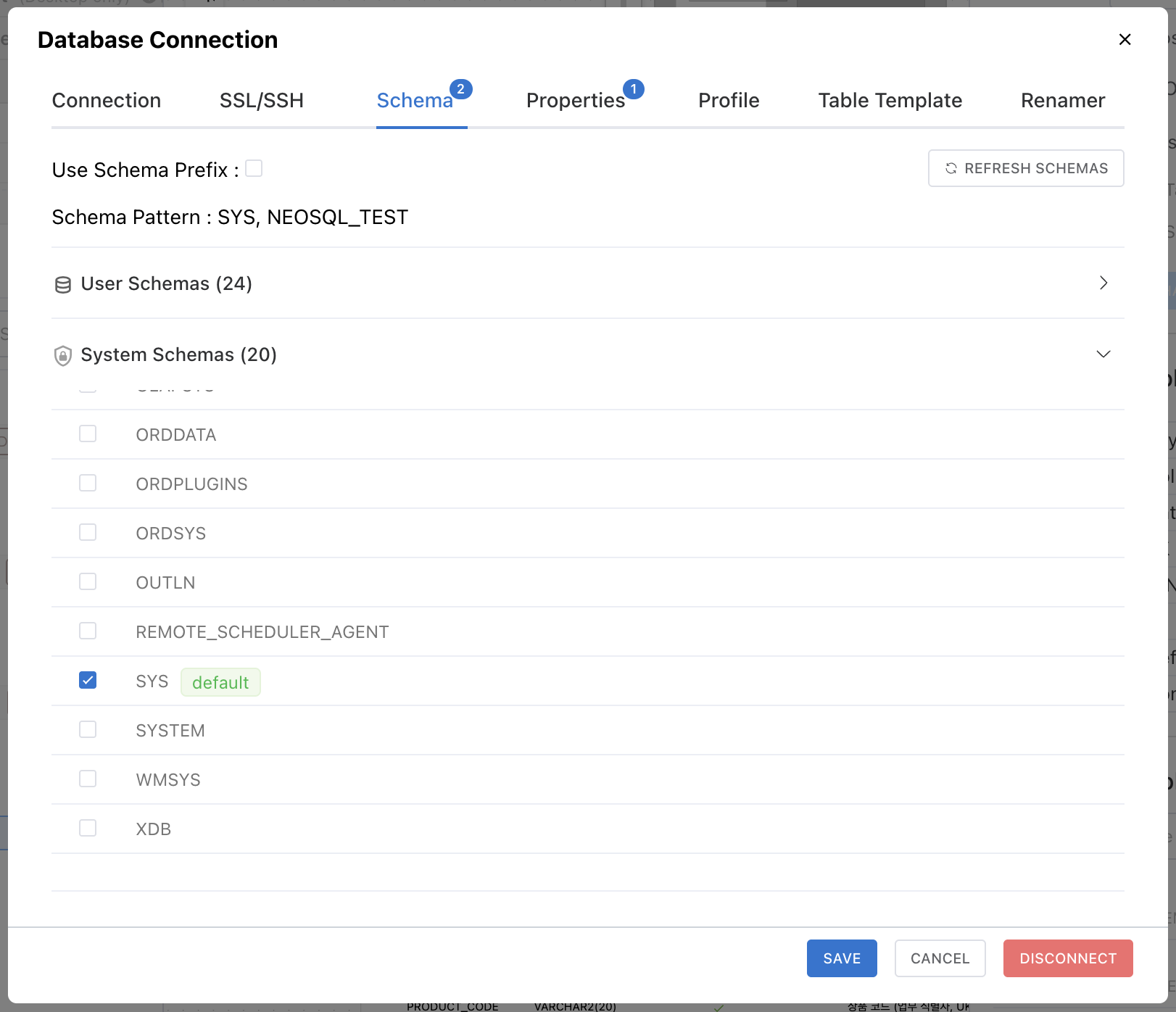
Schema Tab Activation
The Schema tab is enabled after a successful connection test. Running the test automatically retrieves the list of available schemas from the database.
Selecting Schemas
Select the schemas to use in the ERD using checkboxes.
- The default schema cannot be unchecked and is marked with a "default" badge.
- Selecting multiple schemas allows you to manage tables from all selected schemas in the ERD.
System and User Schemas
Retrieved schemas are automatically split into two groups: User Schemas and System Schemas. System schemas are the ones a DBMS uses internally (such as information_schema). They appear in a separate, grayed-out group that is collapsed by default (the User Schemas group opens first).
- Tables in system schemas are read-only. DDL changes — adding columns, pasting, creating/deleting Foreign Keys, and so on — are blocked in the ERD.
- System schemas can still be selected with a checkbox to view them in the ERD. This is useful when a table in another schema references a table in a system schema via a Foreign Key.
A schema is classified as a system schema if either of the following applies:
- DBMS default system schema — a built-in list defined per DBMS. These cannot be unmarked by the user.
- User-marked — right-click a schema in the project tree and choose Mark as system schema to mark it manually. Right-click again to unmark it (default system schemas cannot be marked or unmarked).
| DBMS | Default system schemas |
|---|---|
| PostgreSQL | pg_catalog, information_schema, pg_toast, pgbouncer (pg_temp_*, pg_toast_temp_*) |
| MySQL / MariaDB | mysql, information_schema, performance_schema, sys |
| Oracle | SYS, SYSTEM, SYSAUX, OUTLN, XDB … (APEX_*, FLOWS_*) |
| SQL Server | sys, INFORMATION_SCHEMA, guest, db_* |
| H2 | INFORMATION_SCHEMA |
| SQLite | None (user-marking only) |
Use Schema Prefix
Enable "Use Schema Prefix" to prepend the schema name to table names. This is useful when multiple schemas contain tables with the same name.
| Setting | Table Display Example |
|---|---|
| Schema Prefix OFF | users |
| Schema Prefix ON | public.users |
Schema Mapping
If a schema previously used in the connection has been deleted or renamed in the database, it will appear as "Not in DB" after a connection test. You can handle this in two ways:
- Schema Mapping — Map the old schema to a new one. Tables in the ERD are automatically migrated to the new schema.
- Delete — Remove the schema from the connection.
Note: The Schema tab is only meaningful for DBMS that support schemas, such as PostgreSQL, Oracle, and SQL Server. In MySQL/MariaDB, the database itself acts as the schema, so only the default schema is shown.
Renamer
Set up rules to automatically convert table and column names during Reverse Engineering (DB -> ERD). Configure in the Renamer tab of the connection settings.
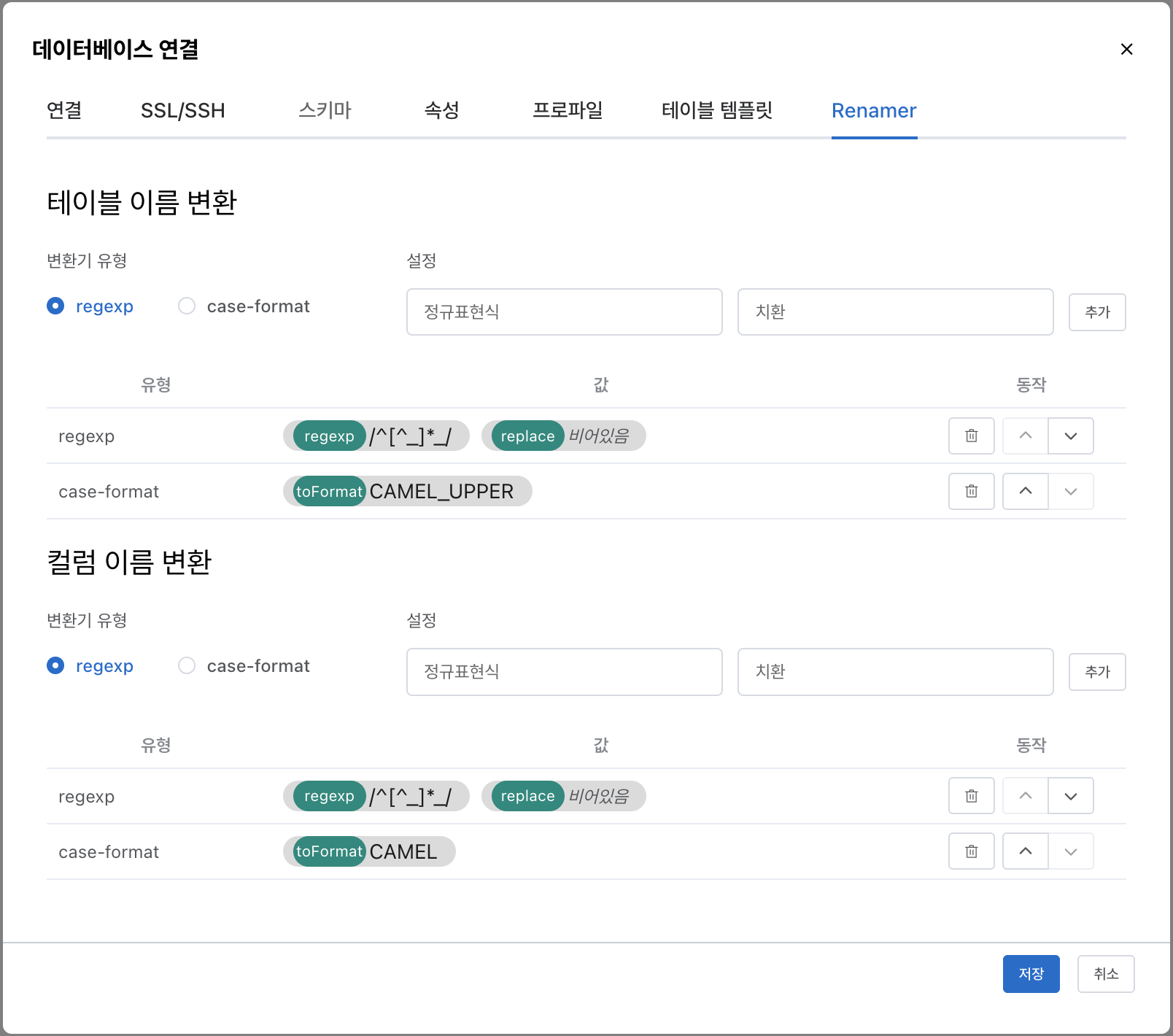
Table Renamer and Column Renamer can be configured independently. When multiple rules are added to each Renamer, they are applied sequentially in list order.
Renamer Types
regexp (Regular Expression)
Use regular expressions to find and replace specific patterns in names.
| Field | Description |
|---|---|
| regexp | Pattern to find (JavaScript regular expression) |
| replace | Replacement string (leave empty to remove the matched part) |
Example: Remove table name prefix
- regexp:
/^[^_]*_/, replace: (empty) TBL_USER->USER,TB_ORDER_ITEM->ORDER_ITEM
case-format (Case Conversion)
Convert the case format of names.
| Format | Example | Description |
|---|---|---|
SNAKE | order_item | Lowercase + underscore |
SNAKE_UPPER | ORDER_ITEM | Uppercase + underscore |
CAMEL | orderItem | camelCase (first letter lowercase) |
CAMEL_UPPER | OrderItem | PascalCase (first letter uppercase) |
Usage Example
If the DB table name is TBL_ORDER_ITEM and you want to display OrderItem in the ERD:
- Add a regexp rule to Table Renamer: regexp
/^[^_]*_/, replace (empty) ->ORDER_ITEM - Add a case-format rule to Table Renamer:
CAMEL_UPPER->OrderItem
Rules are applied from top to bottom, and you can change the order using the arrow buttons in the list.
Note: Renamer is only applied during Reverse Engineering. In Forward Engineering (ERD -> DB), the names displayed in the ERD are used as-is.